Keeping Your Omeka S Collection Safe: Inside the Backup Module
Every digital collection is only as safe as its last backup. The Backup module for Omeka S was built to make that backup a reliable, repeatable, and fully self-contained operation - no extra server software required.
What Does It Back Up?
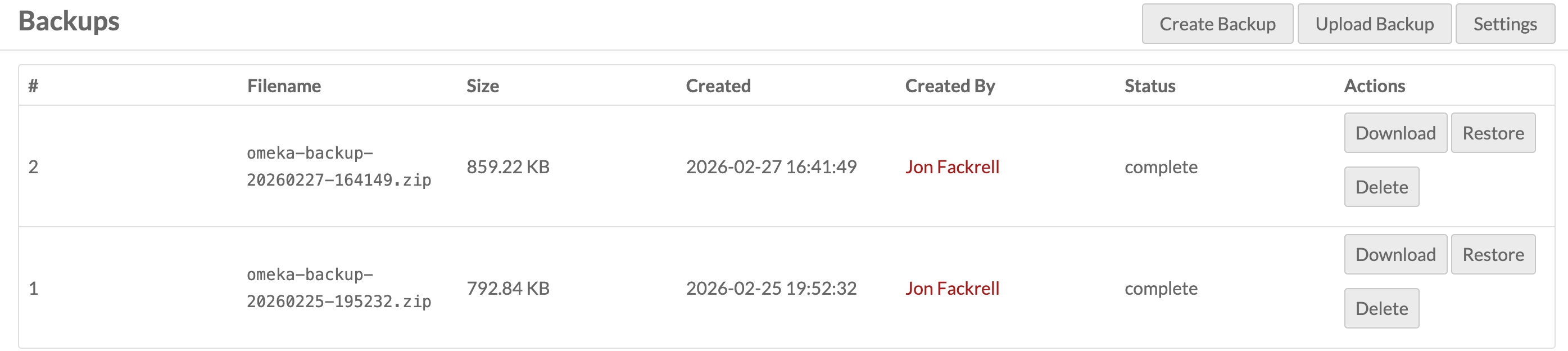
Each backup produces a timestamped ZIP archive — something like omeka backup-20240115-103000.zip — containing up to three components, all configurable:
- Database dump (db.sql) — a complete SQL dump of every table and view in your MySQL database. This is done entirely through PHP using your existing database connection, so there's no dependency on mysqldump being installed on the server. Data is streamed row-by-row to keep memory usage flat even on large collections.
- Files (files/) — a copy of Omeka's entire files directory, including originals, thumbnails, and all derivative sizes.
- JSON-LD API export (export/) — a set of JSON files produced by Omeka's own API, one per resource type: items, item sets, media files, vocabularies, resource templates, properties, resource classes, and sites. This export isn't used for restore (Omeka doesn't have a bulk import API), but it's invaluable as a portable, human-readable snapshot of your data that can be read, searched, or imported into other systems.
- A metadata.json manifest is always included, recording the module version, creation timestamp, and which components are present — so you can inspect any archive and know exactly what's inside without extracting it.
Creating a Backup
From the admin panel, click Backup → Create Backup, choose which components to include (all three are on by default), and click the button. The module checks that you have at least 100 MB of free disk space before it starts, acquires an exclusive file lock to prevent two backups from running simultaneously, writes an in_progress record to the database immediately (so a crash mid-run is visible), and then works through the dump, export, and file copy in sequence. When the ZIP is finalized, it computes a SHA-256 checksum and records the file size.
If anything goes wrong, the in-progress record is marked failed and the temporary directory is cleaned up in a finally block.
Restoring a Backup
Restoring is a two-step process by design. The first page shows a dry-run preview — before you commit to anything, the module reads the archive's metadata (or peeks inside the ZIP itself for uploaded backups) and tells you exactly what it would overwrite: which database on which host, which files directory path. Only after you review that and type RESTORE into a confirmation field does the restore actually proceed.
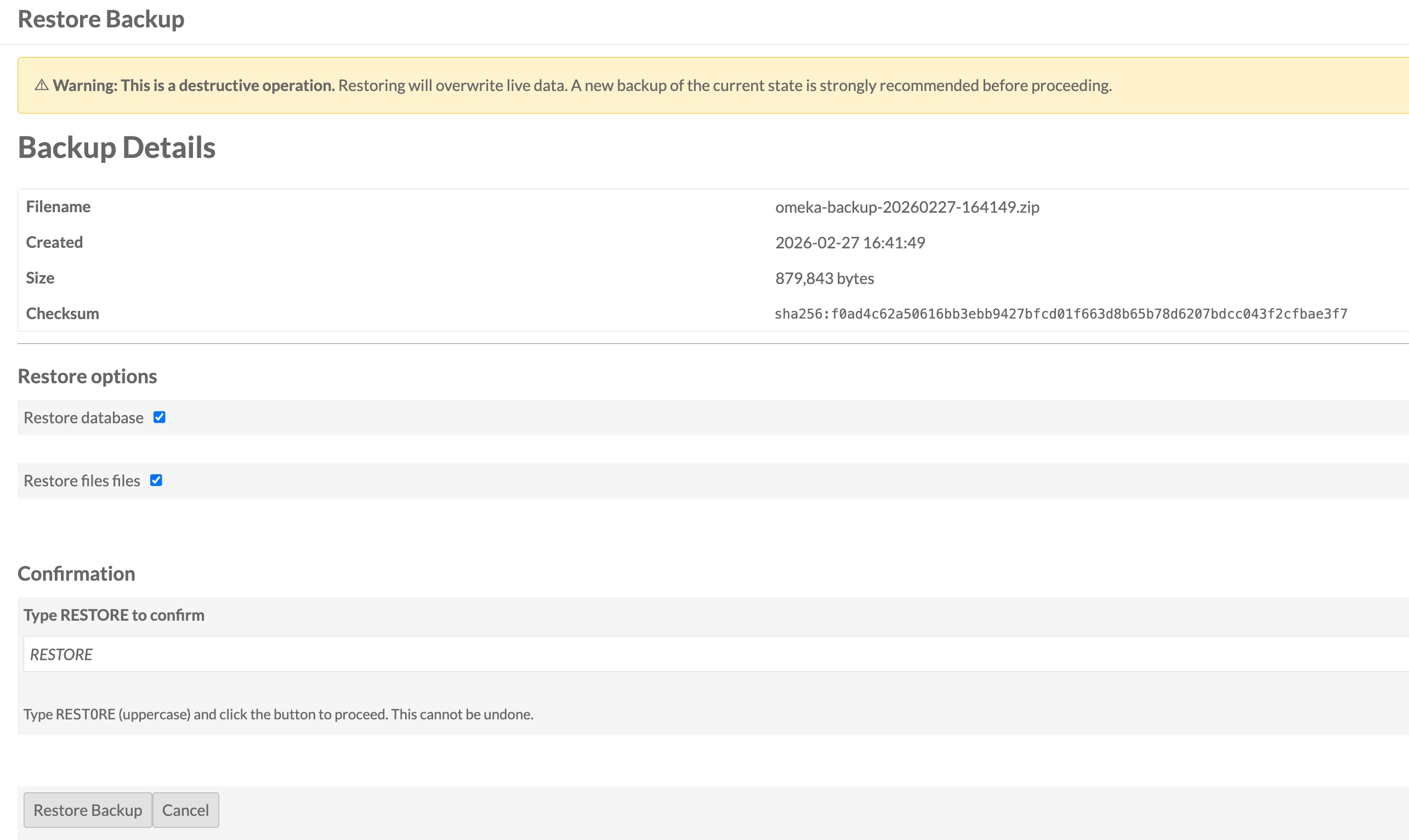
Before touching a single file, the module validates the ZIP's SHA-256 checksum against what was recorded at creation time. A mismatch aborts immediately with an error — protecting you from a corrupted or tampered archive.
You can restore the database, the files, or both independently. The JSON-LD export in the archive is never automatically re-imported; it's there as a reference.
Scheduled Backups with Cron
For unattended, server-side automation there's a CLI script at modules/Backup/bin/backup.php. A typical crontab looks like this:
 # Daily backup at 2 AM

 0 2 * * * /usr/bin/php /var/www/omeka-s/modules/Backup/bin/backup.php create

 # Weekly cleanup

 0 3 * * 0 /usr/bin/php /var/www/omeka-s/modules/Backup/bin/backup.php cleanup
The CLI supports the same component flags as the UI (--no-api, --no-files) and exits with code 0 on success or 1 on failure, making it easy to integrate with monitoring systems.
Uploading Backups from Another Server
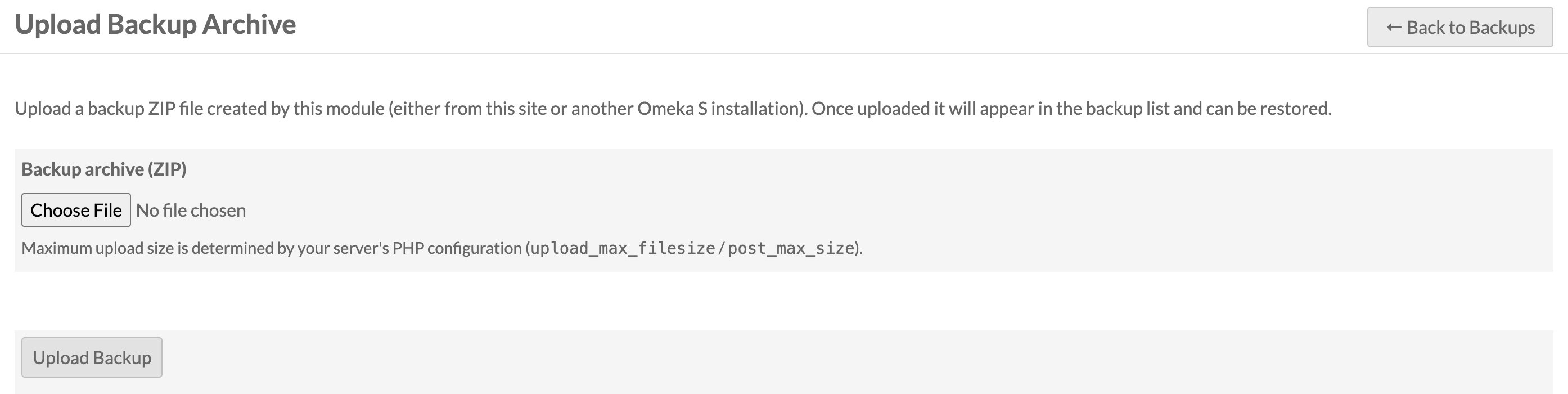
The module can also import a ZIP file created on a different server. Upload the archive through the admin UI, and it validates that the file is a real ZIP containing metadata.json before accepting it. Once imported, the backup appears in the list and can be restored using the same process as a locally-created backup — useful for migrating between environments or recovering from a disaster on a fresh server.
Retention Policy
After each backup run, the module automatically enforces a retention limit. By default it keeps the last seven complete backups and deletes older ones from both the filesystem and the database. You can adjust this in Backup → Settings.
What It Doesn't Do (Yet)
A few things worth noting if you're evaluating it for a large or high-traffic site:
- Local storage only. Backups go to a directory on the same server. For off-site durability you'd need to sync that directory to S3 or another remote location separately.
For the vast majority of Omeka S installations the module handles the full cycle without any additional infrastructure: install, click, download your ZIP, sleep soundly.